
Features · September 17, 2026
Find your race: your guide to RTChallenge
Practice, challenge a friend, run an event or chase an RTCA championship. An illustrated guide to racing modes, the Lobby, tree settings and getting on the starting line.
Make a few practice hits. Call out a friend. Run your own bracket. Or chase an RTCA championship. Here’s where to go, what to expect, and how to get on the starting line.
You can browse public events, results and leaderboards before joining. When you’re ready to race, create your free RTChallenge account and sign in. On desktop, use the navigation across the top. On your phone, open the menu to find the same pages.
Keep this guide handy: our FAQ (https://rtchallenge.com/faq) has permanent answers about racing, settings and RTCA membership.
Practice: find your rhythm
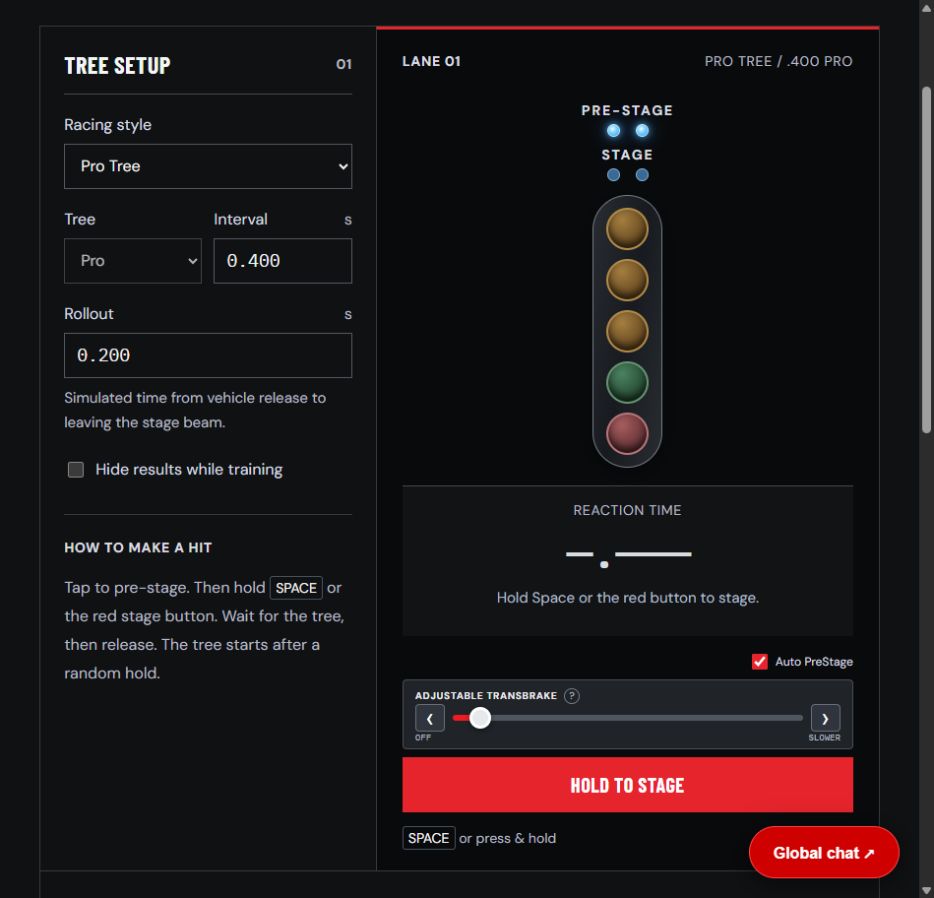
Open Practice (https://rtchallenge.com/practice) to work on your reaction time without an opponent. Choose Pro Tree, Top Bulb or Bottom Bulb, then check your interval and rollout in Tree Setup. Practice lets you change your setup, so match it to the race you’re preparing for.
Tap to pre-stage, then hold the main button or your spacebar to stage. Keep holding as the tree starts, and release to make your hit. Auto PreStage skips the separate pre-stage tap when enabled. Your preference is remembered.
The adjustable transbrake lets you slow your release response. Move the slider or use its arrows for small, variable nudges that simulate adjusting a real button. Its position is remembered without showing a numerical delay.
Your practice hits save to your account with their tree configuration. Open My Stats for your history. On mobile, switch between the tree and stats tabs.
Head to Head: call out a racer
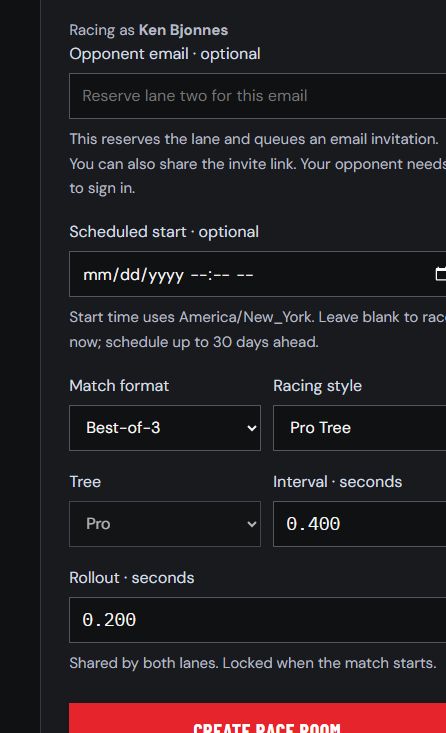
Head to Head (https://rtchallenge.com/race) is our one-on-one race-room feature, previously called Live Racing. Create a single-hit, best-of-three or best-of-five match, choose the available tree settings, and share the room link with your opponent. You can also enter their email to reserve the second lane and send an invitation.
Both racers sign in and enter the room. Press Ready, pre-stage, then hold to stage. The lower clean reaction time wins. A clean hit beats a red light; if both racers go red, the one closest to zero wins. Follow the main button to advance through a multi-hit match.
The Lobby: find someone to race
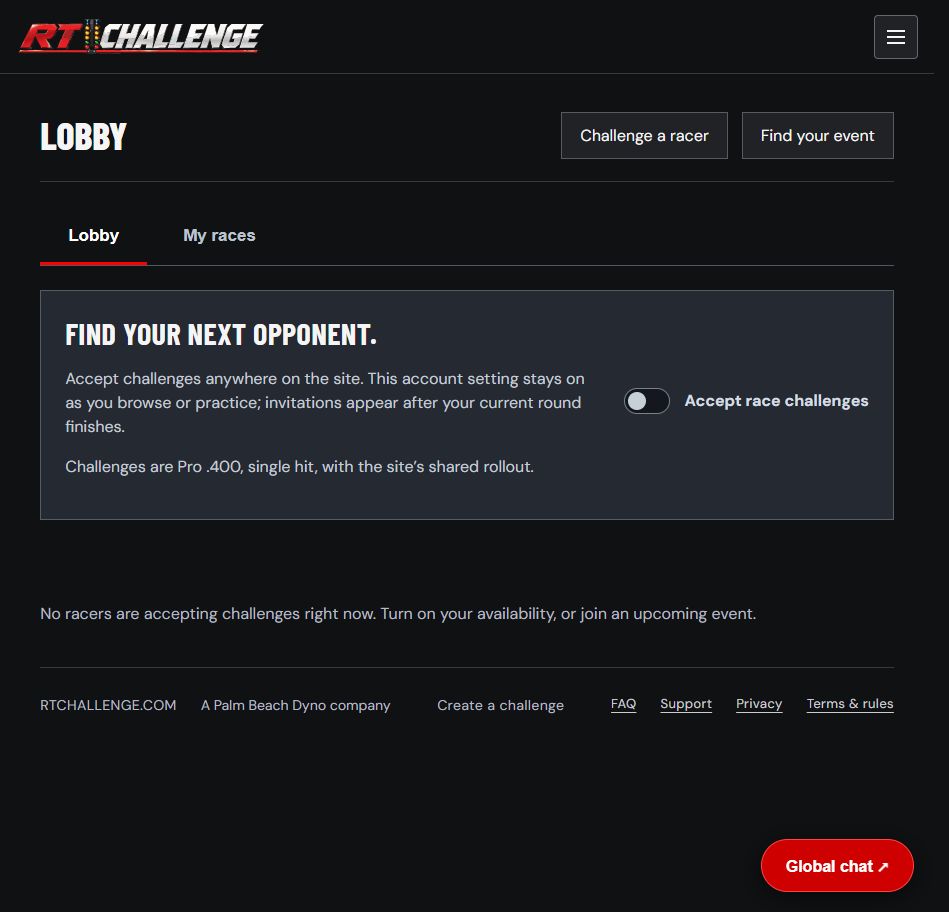
Looking for an opponent? Open the Lobby (https://rtchallenge.com/lobby) and turn on Accept race challenges. While you’re active on the site, other racers can find you and send a challenge. The setting stays on as you browse or practice; you don’t have to leave the Lobby open.
An incoming challenge appears as a pop-up. If you’re in a racing round, the invitation waits until that round finishes. Lobby challenges use Pro .400, a single hit and the site’s shared rollout. For a custom match format, use Head to Head.
The Lobby tab is for finding opponents. My races brings you back to your race rooms. Member chat is another place to meet racers and organize a matchup. Turn off Accept race challenges when you don’t want invitations.
Community events: build your own race
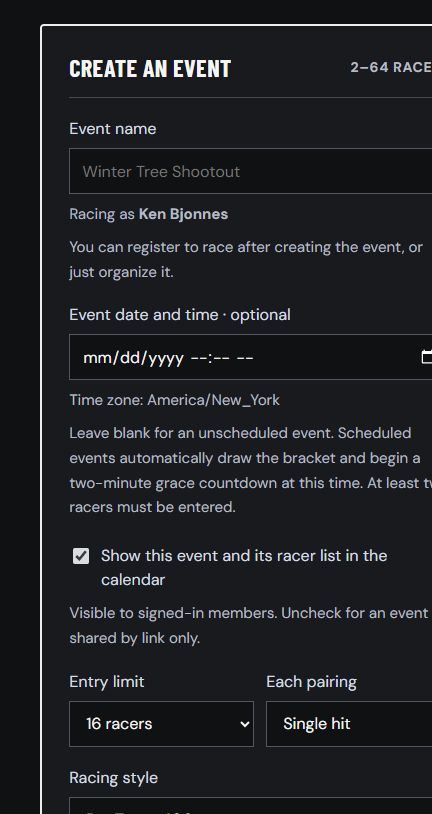
Visit Events (https://rtchallenge.com/events) to see today’s races and browse the calendar. Open an event to check its settings, start time, entries and prizes, then register. Want to organize one? Select Create event at the top of the page to jump to the form.
Member-created events can use an 8-, 16-, 32- or 64-racer entry limit, with single-hit, best-of-three or best-of-five pairings. The organizer chooses the available racing settings. Share your event link and let the bracket track the competition.
A community event has its own winner and results, but does not automatically become an RTCA-sanctioned race. The organizer’s identity or the words “RTCA” in a title do not determine sanctioning.
RTCA races: know what counts
RTCA stands for RT Challenge Association. A sanctioned event is an official RTCA race run under its participation rules and recorded in its sanctioned results.
During an active season, only series races are RTCA-sanctioned. Between seasons, RTCA may hold standalone sanctioned races, limited to one per day. Second Chance races are never RTCA-sanctioned, even when RTCA organizes them. They provide another opportunity to race, but do not count as sanctioned wins or season points.
To enter an RTCA race, first read the participation rules and join RTCA (https://rtchallenge.com/rtca-membership). This is a separate step from creating your RTChallenge account. Membership is complimentary through December 31, 2026, covering all of Season 1. No card or payment is required. Paid renewal begins in 2027, with details announced in advance; joining now does not authorize an automatic charge.
Joining RTCA does not register you for a race. After joining, return to the event page and enter that event. Series races require RacerRep of at least 80; standalone sanctioned races require at least 70. Check your score in Account.
Season 1: the road to the World Finals
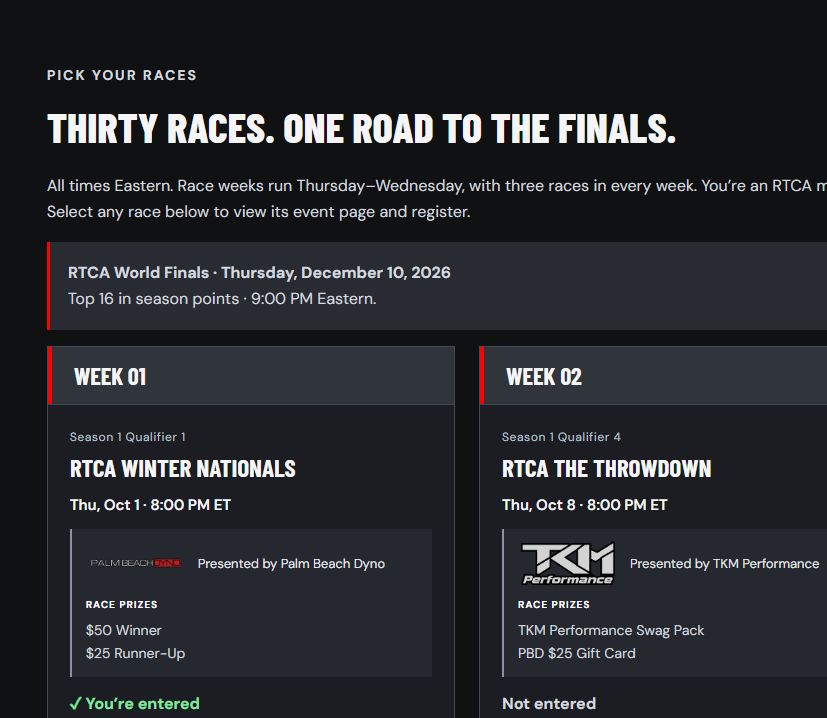
The next season opens with the RTCA Winter Nationals on October 1, 2026, at 8 PM Eastern. There are 30 qualifiers over ten weeks, with up to 64 racers per race. Your best ten event scores count, plus attendance bonuses. You can enter as many qualifiers as you like without needing to make every race.
Attend 21 or more qualifiers for a 20-point bonus; attend all 30 for another 30 points. The top 16 in the final standings advance to the RTCA World Finals on December 10 at 9 PM Eastern. Qualifiers have event prizes, and the Finals award cash prizes. Check each event for its specific awards and conditions.
Open the RTCA schedule (https://rtchallenge.com/rtca#schedule) and use each race’s View Event / Register button. The tiles show whether you’re already entered. Only designated qualifiers earn regular-season points; the World Finals decide the championship.
Understand your tree settings
.200 rollout is RTChallenge’s standard starting setting. It simulates the time between releasing the vehicle and clearing the stage beam. It is separate from the tree interval: on Pro .400, the .400 describes the amber-to-green interval, while .200 is the rollout added to your release timing.
Practice: You can adjust rollout and the available tree settings to suit your training.
Head to Head: The organizer can choose rollout where site rules permit. Both lanes share it, and it locks when the first round is armed.
Lobby challenges: Pro .400, single hit and the site’s shared rollout. Use a custom Head to Head room for other formats.
Community and standalone RTCA events: Check the event’s published setup. Organizer rollout changes depend on site policy and lock when the bracket is drawn. All pairings use the same event settings.
RTCA Season 1: Fixed Pro .400, shared .200 rollout, no delay box, single-hit elimination. Racers cannot change those competition settings.
Delay-box support is available only for Top Bulb. The adjustable transbrake is a separate personal control; moving it does not change the shared race rollout. Match your practice setup to the event before race day.
Be ready when your room opens
Be signed in and on the event page at the scheduled start. Scheduled events begin with a two-minute grace countdown. Watch for Enter Race Room, open your assigned room and press Ready. Watching the event page is not the same as entering your race.
Once one racer enters, the other has two minutes to join. Once both are in, there are two minutes to stage. When both are pre-staged and one fully stages, a final 10-second staging allowance begins. Missing a deadline can forfeit the pairing.
If you cannot make an RTCA event, withdraw at least 30 minutes before the start and before the bracket is drawn. If entries are already locked, contact support promptly. No-shows affect RacerRep; showing up for completed events helps restore it.
Your next step: make a practice hit (https://rtchallenge.com/practice), find an opponent (https://rtchallenge.com/lobby), or pick your first RTCA qualifier (https://rtchallenge.com/rtca#schedule). We’ll see you at the tree.